How to share an ID copy with fewer details exposed
Share only the details the process needs and mark the copy for that recipient. These six measures can make reuse harder, but they do not guarantee acceptance or prevent fraud. You review every change before export. The cited legal guidance applies to Spain.
The Spanish data protection authority requires data minimisation and has stated that accommodation providers cannot demand an ID copy merely to comply with guest registration. The editing techniques are Ofuska's practical recommendations.
- Published:
- Reviewed:
- Editorial responsibility:
- Ofuska
- Jurisdiction:
- Spain
- AEPD: accommodation providers cannot demand a DNI or passport copy (17 June 2025, Spanish)
- GDPR Article 5: data minimisation principle
1Hide the data that isn't needed
Cross out or pixelate everything the process doesn't need: signature, support number, date of birth or the MRZ (the lines on the back).
With Ofuska: The editor provides a brush, rectangles, pixelation and blur. You can reuse masks; Pro saves per-photo templates, and the What to hide guide helps you decide.
2Send the copy in black and white
A black-and-white copy is harder to reuse in verifications that expect the document in colour.
With Ofuska: Tick one box when you generate the copy.
3Write the purpose and the date on the image
Adding the intended recipient, purpose and date makes the copy harder to reuse elsewhere.
With Ofuska: The security mosaic repeats the recipient and the date diagonally across the whole image, without covering the data that is actually needed.
4Add a watermark
A visible mark deters. The invisible watermark can provide traceability when the required pixels and the local copy both survive.
With Ofuska: Every new copy carries the visible mosaic plus an authenticated v2 invisible watermark linked to the send.
5Store and send the document encrypted
Keeping an unprotected copy in your photo library or cloud storage can also leave it exposed.
With Ofuska: Your documents are encrypted with AES-256 on your phone and protected by your PIN or biometrics. The optional Google Drive backup is encrypted too, so Google cannot read its contents.
6Track the recipient and ask for deletion afterwards
Note down who you gave each copy to and ask them to delete it once the process is over.
With Ofuska: History shows which copy you sent and who received it. If the image still contains the watermark, Verify Copy can match it to that send.
All of this, inside the app
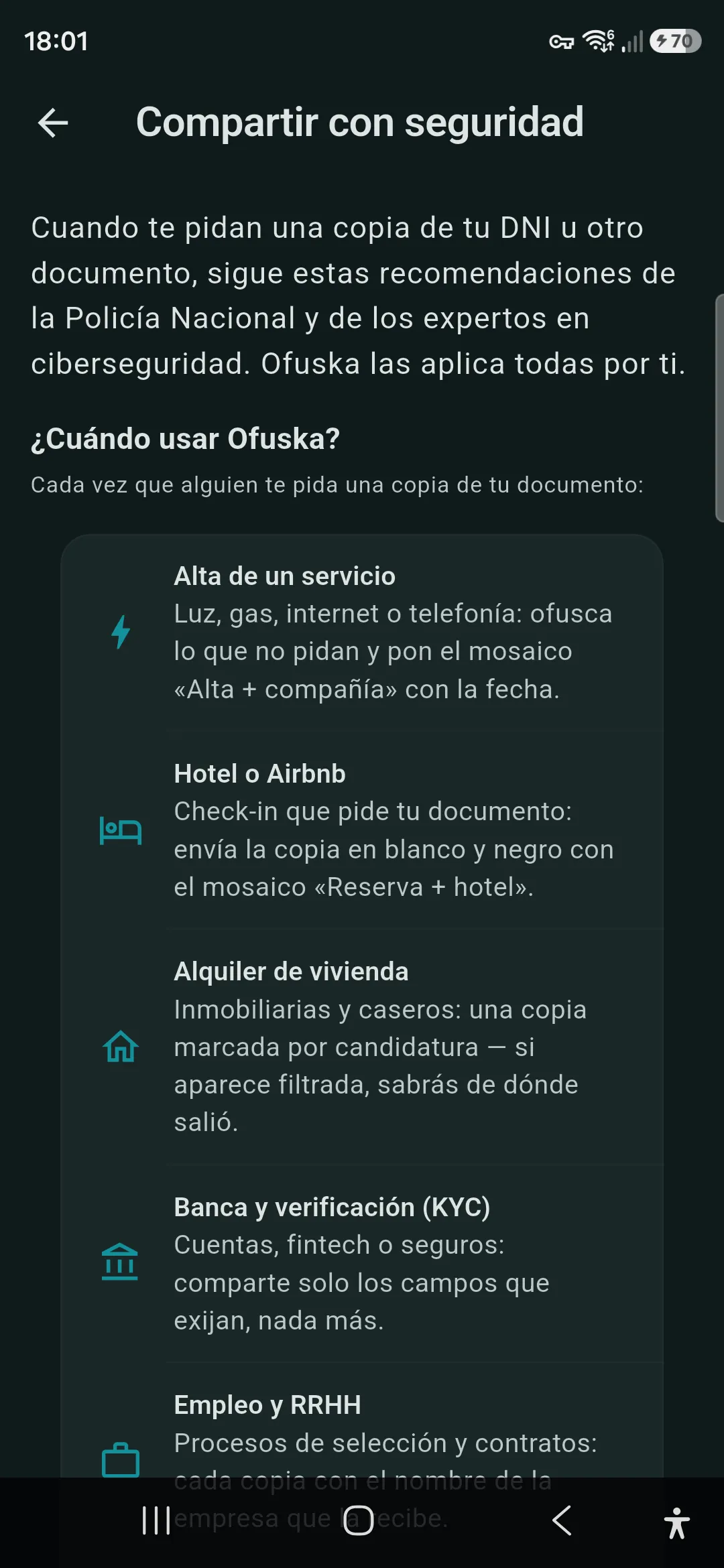
Ofuska's guide explains which details you can show or hide for each situation. You choose the areas and review the result before export.
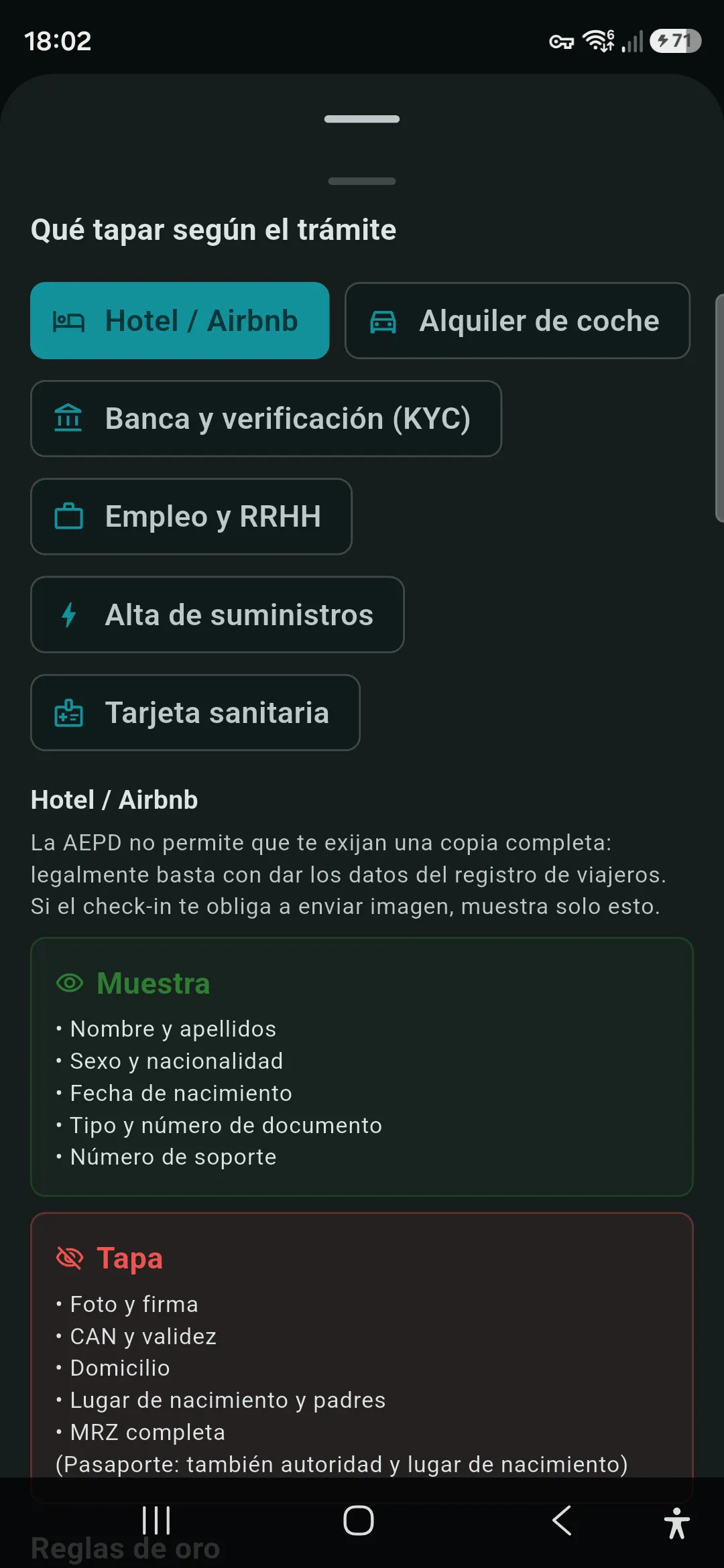
Two golden rules before you cover anything
The MRZ repeats key details
The lines of characters on the back (the MRZ) repeat the number, the date of birth, the expiry date and the name. Covering a printed field while leaving the MRZ visible is covering nothing.
The CAN and the signature are almost never needed
The CAN (the 6 digits on the front) provides NFC access to the DNI chip, while exposing your signature can increase the risk of misuse. Hide both unless the process needs them.
What to show and what to hide, process by process
Every process has its own legal basis and its own list of data. You'll find both, with their show/hide table, in each use case:
Doing this by hand means editing the photo, adding marks and recording the send. Ofuska brings those tasks into one flow.
How it works →